Difference between revisions of "OctoPrint"
From TSAS Library
JStallings (talk | contribs) |
JStallings (talk | contribs) |
||
| Line 7: | Line 7: | ||
# Click your file to load it. If there are errors, do not print the file | # Click your file to load it. If there are errors, do not print the file | ||
# If there are no errors, click the Blue print button to begin printing | # If there are no errors, click the Blue print button to begin printing | ||
==Printing== | |||
# Click on your filename in Octoprint. If nothing is printing, it will load the file | |||
# Click the big blue "Print" button | |||
# Head to the printer and watch the first few layers for errors | |||
Revision as of 09:42, 24 April 2017
This page is for the use of OctoPrint; for installation and technical information, see How to: Install Octoprint.
- OctoPrint is located here. We use it to control the printer remotely
- Login with your credentials. Ask Stallings
- Open the folder on your computer containing the .gcode file you created with Cura
- Drag the file into the left of the OctoPrint screen
- You should see the file appear in the Files list on the left side of the screen.
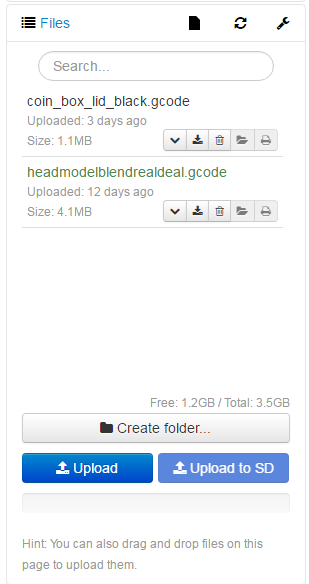
- Click your file to load it. If there are errors, do not print the file
- If there are no errors, click the Blue print button to begin printing

Printing
- Click on your filename in Octoprint. If nothing is printing, it will load the file
- Click the big blue "Print" button
- Head to the printer and watch the first few layers for errors